eSIM Not Working? A Traveler's Troubleshooting Guide (2026)

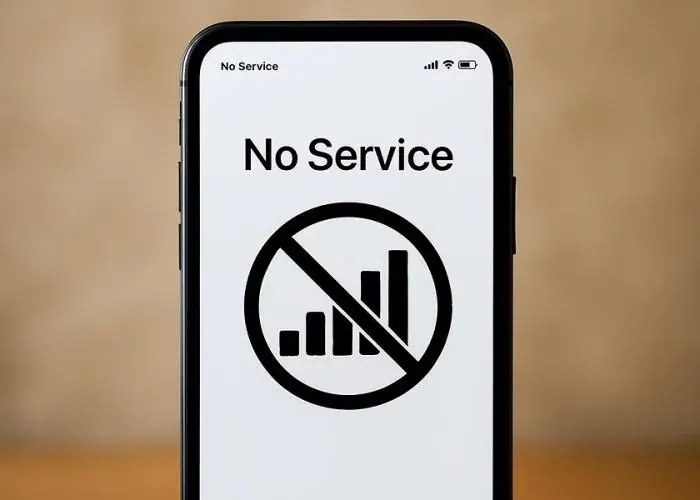
You've landed, you're tired, and your eSIM won't connect. Don't panic. The large majority of eSIM problems come down to a handful of settings, and most take under a minute to fix. Work through this checklist in order and you'll almost certainly be back online before you've left the airport. We'll start with the quick wins, then move to the deeper fixes, and finish with the mistakes that stop an eSIM installing in the first place.
Here's the reassuring part. An eSIM that shows "No Service" is rarely broken. The little chip inside your phone is doing exactly what it should. What usually goes wrong is that one switch is off, one line is selected instead of another, or the phone simply hasn't found the local network yet because you only landed two minutes ago. None of that is a fault you need to escalate. It's a setup gap you can close yourself, often standing right there at the baggage carousel.
So treat this guide as a calm sequence rather than a panic list. Each section builds on the one before it. If a step fixes things, stop there and enjoy your trip. If it doesn't, move on to the next. By the time you reach the bottom you'll either be connected or you'll know exactly what to tell support, which saves everyone time. Keep your phone handy and let's walk through it together.
TL;DR
Most "eSIM not working" problems are settings, not faults. Check that the eSIM line is switched on, that data roaming is enabled for the eSIM line specifically, and that the eSIM is set as your data line.
A restart fixes a surprising number of cases. If none of that works, the data line, the APN, or simply not being inside the coverage area yet is usually the culprit.
First, the 60-second fixes
Run these before anything else. They solve the bulk of cases on their own:
- Toggle Airplane mode on for ten seconds, then off. This forces your phone to re-scan for networks and often grabs the local one immediately.
- Restart the phone. A full reboot right after installing an eSIM clears up a lot of first-connection issues.
- Confirm you've actually arrived in coverage. Many plans only activate once they detect a network in the destination country, so they won't connect while you're still at your departure airport or on the plane.
Still offline? Keep going. The next three checks catch almost everything else.
Step 1: Make sure the eSIM line is switched on
It's surprisingly easy to install an eSIM and forget to enable the line itself.
- iPhone: Settings > Cellular/Mobile Service > tap your travel eSIM > toggle Turn On This Line.
- Android: Settings > Network & internet > SIMs > select the eSIM > toggle it on.
Step 2: Turn on data roaming, for the eSIM line
This is the single most common mistake, so don't skip it. A travel eSIM connects to a local partner network, which technically counts as "roaming," so the setting must be on for that line. This does not mean you'll be charged home-roaming fees. Those apply to your home SIM, not the travel eSIM. Leave your home line's roaming off and the travel eSIM's roaming on.
- iPhone: Settings > Cellular > tap the eSIM line > Data Roaming > On.
- Android: Settings > Network & internet > SIMs > eSIM > Roaming > On.
Step 3: Set the eSIM as your data line
Your phone needs to know which line carries data, and it doesn't always guess right.
- iPhone: Settings > Cellular > Cellular Data > [your travel eSIM].
- Android: Settings > Network & internet > SIMs > Mobile data > [your travel eSIM].
Keep your home line for calls and texts if you like. Just make sure data points to the eSIM.
A quick word on which line does what
When you run two lines at once, your phone is quietly making decisions about which one handles each job. One line carries your data, one handles calls, and one handles texts, and they don't all have to be the same line. This is where a lot of confusing "it connects but there's no internet" situations come from. The bars at the top of the screen might belong to your home network, while your data is meant to ride on the travel eSIM that you forgot to point things at.
If you want a simple mental model, picture two separate phones living inside one device. The travel eSIM is the one you want browsing maps, loading messages, and streaming directions. Your home line, if you keep it active at all, should mostly sit quietly so it doesn't rack up charges. Spend thirty seconds confirming the data line points at the eSIM and you'll skip the most frustrating class of problems entirely. If you're still deciding how the whole eSIM-versus-physical-SIM picture fits together, eSIM vs SIM vs roaming lays it out plainly.
Still nothing? Work through these
- Select the network manually. Turn off automatic selection (Settings > Cellular > Network Selection) and pick a carrier by hand. Choose the one your plan uses, and if you're not sure, try each in turn.
- Check the APN. Most eSIMs configure this automatically, but a few need a manual APN entered. Your provider's confirmation email or help page will list the exact value.
- Force 4G instead of 5G. If 5G is patchy in the area, switching to 4G/LTE often gives a more stable roaming connection.
- Free up storage. Rarely, a nearly full phone fails to install the profile cleanly. Clear some space and reinstall.
- Confirm the plan is actually live. Check in your provider account that the plan has started and still has data and validity left. If it's expired or used up, you'll need to top up.
A note on patience here. After you toggle a setting, give the phone a moment to react before you decide it didn't work. Networks take a few seconds to register, and switching between automatic and manual selection sometimes needs one more reboot to settle. Change one thing at a time, wait, then check. Changing five settings at once just makes it harder to know what actually fixed the problem.
Region-specific quirks worth knowing
Most of the time an eSIM behaves the same everywhere, but a few destinations have their own habits. Some countries restrict or filter certain services, so an app that won't load might be a local block rather than an eSIM fault. If your maps and browser work but one specific app refuses to open, that's a clue the connection is fine and the destination is the variable.
Coverage also varies by region within a country. A plan that connects beautifully in a major city can go quiet in a remote valley or a deep basement. If you've just stepped off a train into a rural area and lost signal, try the manual network selection trick before assuming the eSIM has failed. For destination-specific guidance, our country guides like best eSIM for China, best eSIM for Japan, and best eSIM for Europe cover what to expect on the ground.
When the eSIM won't even install
If you're stuck before you've even got the profile on your phone, it's usually one of these:
- No internet during install. Installation needs a connection to download the profile, so do it on Wi-Fi before you fly.
- The QR code was already used. Each QR installs once. If you scanned it on another phone, ask the provider to reissue it.
- The phone is carrier-locked. A locked phone can't accept a third-party eSIM. Contact your home carrier to unlock it. Not sure where you stand? Start with does my phone support eSIM.
- The profile was deleted. If you removed the eSIM to "start fresh," you usually can't reinstall from the same QR. Reissue is the fix.
- The device isn't compatible. Not every phone supports eSIM, and a few that do still need a software update first. If the install option simply isn't appearing in your settings, check does my phone support eSIM and the supported devices list before you go any further.
If you haven't installed yet and want to get the process right the first time, our step-by-step walkthrough in how to install an eSIM covers both iPhone and Android with screenshots, so you don't have to guess at the menu names.
A quick pre-trip checklist to avoid all of this
Most eSIM headaches are prevented at home, not solved abroad. Before you leave:
- Install the eSIM over Wi-Fi a day or two before departure.
- Label the line clearly so you can find it fast on arrival.
- Leave it set to activate on arrival so you don't waste validity.
- Screenshot your provider's APN and support details in case you land somewhere with no signal to look them up.
When to contact support
If you've enabled the line, turned on data roaming for it, set it as the data line, restarted, and you're genuinely inside the coverage area, and it still won't connect, it's time to contact your provider. Have your eSIM or order number ready. A good provider resolves activation issues quickly, and responsive support is one of the better reasons to buy from an established name rather than the cheapest reseller you can find.
The bottom line
Nine times out of ten, an eSIM that "isn't working" just needs data roaming switched on for that line and the line set as your data line. Add a quick restart and a moment to let the network register, and you've solved the overwhelming majority of problems without contacting anyone. The trick is to stay calm and go in order rather than flipping every switch at once.
The deeper fixes, manual network selection, the APN, forcing 4G, are there for the rarer cases, and the install issues almost always trace back to no Wi-Fi during setup, a reused QR, or a carrier-locked phone. Knowing which bucket your problem falls into is most of the battle.
If you're shopping for a plan that just works on arrival, with support that actually answers when you need it, browse the options at esim70.com. A reliable plan from a provider that stands behind it is the cheapest insurance against a stressful first hour in a new country.
Frequently asked questions
Why does my eSIM say "No Service" right after I land?
Usually because the phone hasn't registered on the local network yet, or data roaming isn't switched on for the eSIM line. Toggle airplane mode off and on, give it a minute, then confirm roaming is enabled for that specific line. Most "No Service" messages clear within a couple of minutes of these steps.
Do I really have to turn on data roaming? Won't that cost extra?
Yes, you need it on for the travel eSIM line, and no, it won't trigger home-roaming fees. A travel eSIM connects to a local partner network, which technically counts as roaming, so the toggle has to be on. The expensive roaming charges apply to your home SIM, so leave your home line's roaming off and the travel eSIM's roaming on.
My eSIM connects but there's no internet. What's wrong?
This is almost always a data-line issue. Your phone is showing bars from one line while data is pointed at another. Set your travel eSIM as the data line in your cellular settings. If that doesn't do it, check the APN and try switching from 5G to 4G in a patchy area.
Can I reinstall my eSIM if I deleted it by mistake?
Usually not from the original QR code, since each one installs a single time. If you've deleted the profile, contact your provider and ask them to reissue it. The same applies if the QR was already scanned on another phone.
Why won't my eSIM install at all?
The most common reasons are no internet during setup, a QR code that was already used, or a carrier-locked phone that can't accept a third-party eSIM. Install over Wi-Fi before you fly, and if your phone is locked, ask your home carrier to unlock it. If the eSIM option doesn't even appear, your device may not support eSIM.
Does my old or expired plan affect anything?
It can. If a plan has run out of data or its validity has expired, it simply won't connect, and the symptoms can look like a fault. Check in your provider account that the plan is live with data and days remaining, and top up if it's run dry.
When should I stop troubleshooting and contact support?
Once you've enabled the line, turned on data roaming for it, set it as the data line, restarted, and confirmed you're genuinely inside the coverage area, and it still won't connect. At that point it's a provider issue rather than a settings one. Have your eSIM or order number ready so they can help you fast.
Convinced?
Try Esim70 — plans from $1.36/day
150+ countries · Instant delivery · No commitment.
Related articles
 GuidesJun 26, 20269 min read
Canada Travel Requirements in 2026: eTA, Visas & Entry Rules
 GuidesJun 26, 202614 min read
Best eSIM for the 2026 World Cup: USA, Canada & Mexico
 GuidesMay 21, 202618 min read
International eSIM Plans: Country, Regional or Global?
 GuidesApr 14, 202612 min read
How Much eSIM Data Do You Need for Travel? (2026 Guide)