How to Install an eSIM on iPhone: Step-by-Step Guide
Install an eSIM on iPhone by QR code, manual entry or app, then set up data and roaming for travel. Clear steps based on Apple's own instructions.

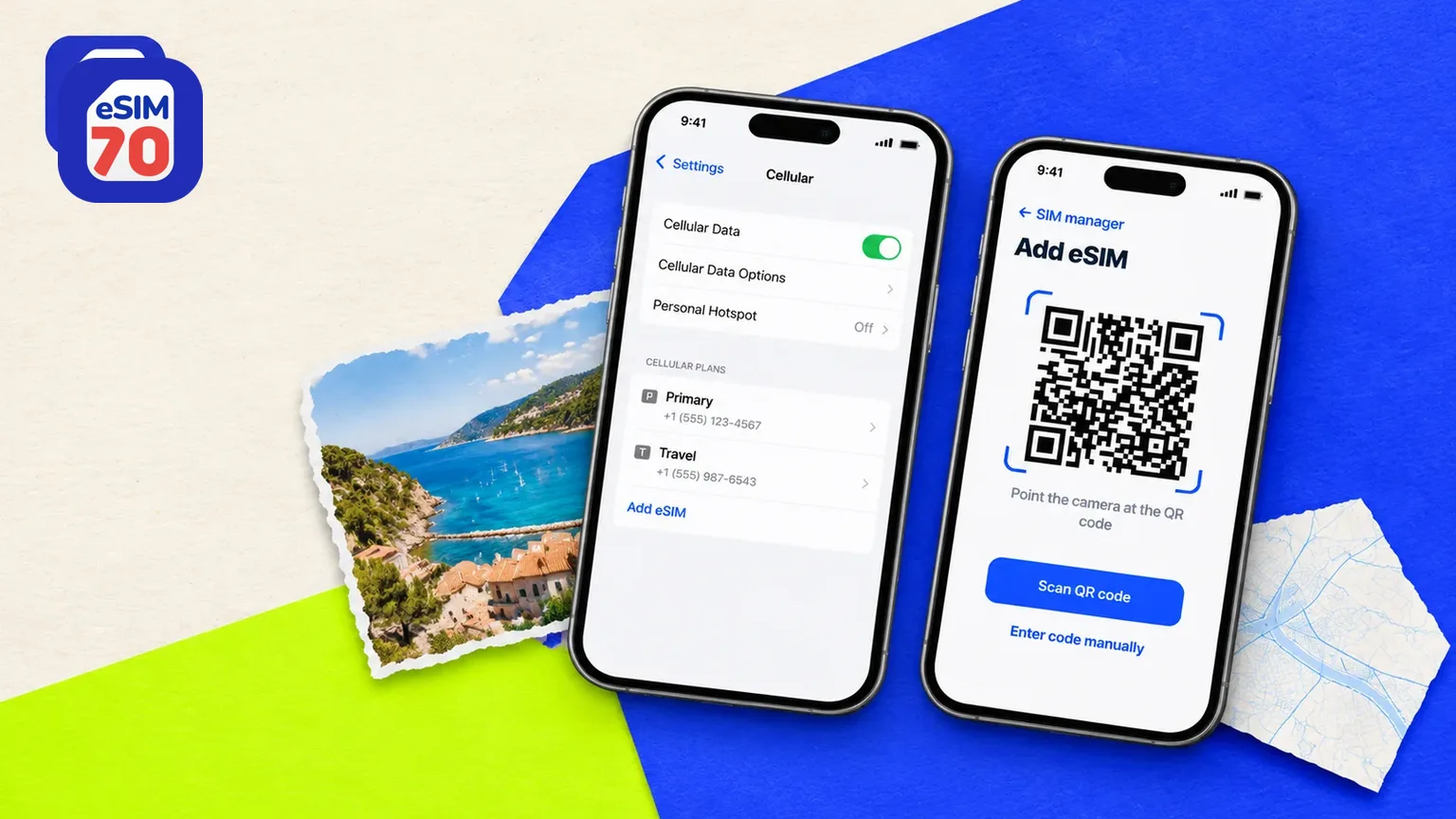
Quick answer: To install an eSIM on iPhone, connect to Wi-Fi, then scan your provider's QR code with the Camera app and tap Cellular Plan Detected, or go to Settings → Cellular → Add eSIM and follow the prompts. Then choose which line uses mobile data. eSIM works on iPhone XS, XS Max, XR and every later model except the iPhone SE (2nd generation).
This guide covers which iPhones support eSIM, the three ways to install one, how to activate it for travel, where to find it in Settings, and what to do if it won't install. Every menu path is taken from Apple's own support pages. Menu names can vary slightly by iOS version and region: you may see Mobile Data instead of Cellular, or Add Cellular Plan instead of Add eSIM.
Which iPhones support eSIM?
Every iPhone from the XS and XR (2018) onward supports eSIM, with one exception: the iPhone SE (2nd generation) only takes a physical nano-SIM. Here is the full list from Apple:
| iPhone model | eSIM support | Notes |
|---|---|---|
| iPhone XS, XS Max, XR | Yes | eSIM plus nano-SIM |
| iPhone 11, 11 Pro, 11 Pro Max | Yes | eSIM plus nano-SIM |
| iPhone 12, 12 mini, 12 Pro, 12 Pro Max | Yes | eSIM plus nano-SIM |
| iPhone 13, 13 mini, 13 Pro, 13 Pro Max | Yes | Dual eSIM supported from iPhone 13 onward |
| iPhone SE (2nd generation) | No | Nano-SIM only |
| iPhone SE (3rd generation) | Yes | eSIM plus nano-SIM |
| iPhone 14, 15, 16 series and iPhone 16e | Yes | eSIM only when bought in the US; eSIM plus nano-SIM elsewhere |
| iPhone 17, 17 Pro, 17 Pro Max, 17e and iPhone 18 Pro, 18 Pro Max | Yes | eSIM only when bought in the US, US Virgin Islands, Canada, Mexico, Japan, Guam, UAE, Saudi Arabia, Bahrain, Kuwait, Qatar or Oman; eSIM plus nano-SIM elsewhere |
| iPhone Air | Yes | eSIM only |
So, does the iPhone 11 support eSIM? Yes. The same goes for the iPhone 12 and iPhone 13. One regional exception: in mainland China, Apple lists only the iPhone 18 Pro, iPhone 18 Pro Max, iPhone 17e and iPhone Air as supporting eSIM.
To double-check your own phone, go to Settings → General → About and scroll down. If you see an EID number, your iPhone has an eSIM chip. You can also check our supported devices page.
Before you start: a quick checklist
Your iPhone supports eSIM. See the table above.
Your iPhone is unlocked. Go to Settings → General → About and look at Carrier Lock. It should say No SIM Restrictions. If it doesn't, your carrier has to unlock it before a travel eSIM will work.
You're connected to Wi-Fi. The eSIM downloads over the internet. Some eSIM-only models can activate without Wi-Fi in certain countries, but Wi-Fi is the safe default.
iOS is up to date. Apple recommends running the latest iOS version your iPhone supports.
You have your eSIM details. That means the QR code, or the SM-DP+ address and activation code, from your provider's email or app.
How to install an eSIM on iPhone: 3 methods
Method 1: Scan a QR code
Open the Camera app and point it at the QR code from your provider.
Tap the Cellular Plan Detected notification.
Tap Continue, then Add Cellular Plan.
If you're asked for a confirmation code, enter the one your provider gave you.
QR code on the same iPhone? You can't scan your own screen. On iOS 17.4 or later, touch and hold the QR code in the email or web page and tap Add eSIM. On older versions, use Method 2 instead.
Method 2: Enter the details manually
Open Settings and tap Cellular (or Mobile Data).
Tap Add eSIM (or Add Cellular Plan).
Tap Enter Details Manually at the bottom of the screen.
Type in the SM-DP+ address and activation code from your provider, plus a confirmation code if you were given one, and follow the prompts.
Method 3: Install from your provider's app
Many carriers and eSIM providers let you install the eSIM straight from their app with a tap. Download the app from the App Store, open your plan and follow the install steps. This is usually the quickest option because there's nothing to scan or type.
If you're getting an eSIM from your home carrier for a new iPhone, it may be set up during activation or arrive as a Carrier Cellular Plan Ready to Be Installed notification. Tap it, then tap Continue.
How to activate eSIM on iPhone after installing it
Once the eSIM is installed, a few settings decide whether it actually connects, especially if you're using it as a travel eSIM alongside your home SIM.
Label the plan. Go to Settings → Cellular, tap the new line, then tap Cellular Plan Label. Pick a label or type your own, such as "Travel", so you can tell your lines apart.
Choose the line for mobile data. Go to Settings → Cellular → Cellular Data and tap the line you want to use. Only one line can use mobile data at a time, so pick the travel eSIM when you're abroad.
Turn on data roaming for the travel eSIM. Most travel eSIMs connect through partner networks abroad, so data roaming needs to be on for that line. Go to Settings → Cellular, tap the travel eSIM line, tap Cellular Data Options and turn on Data Roaming. Check your provider's instructions to confirm.
On iOS 26 or later, watch for the travel prompt. When you arrive, your iPhone may show Turn On Travel eSIM. Choose Travel eSIM Only, or Travel eSIM and Current eSIM to keep your home line on too. Apple notes that keeping your home line on may still lead to roaming charges from your home carrier.
Your home number can keep working for iMessage and FaceTime while the travel eSIM handles your data.
Where to find eSIM on iPhone
There's no separate eSIM app. Your eSIMs live in Settings → Cellular (or Mobile Data), where each plan appears as its own line that you can label, switch on or off, and manage. Your eSIM chip's ID, the EID, is in Settings → General → About; scroll down to find it.
When should you install a travel eSIM?
Install it before you leave, while you're on reliable Wi-Fi at home, so you're connected as soon as you land. You don't have to switch the line on until you arrive. Some plans start their validity when you install them and others when you first connect abroad, so check your plan's terms before installing very early.
eSIM won't install? Try these steps
If installation fails or the eSIM shows no service, Apple suggests working through these in order:
Make sure you're on Wi-Fi and running the latest iOS.
Turn Airplane Mode on and off.
In Settings → Cellular, turn the eSIM line off and back on.
Restart your iPhone.
Check Settings → General → About for a carrier settings update.
Contact your carrier or eSIM provider.
Avoid deleting the eSIM to fix a problem unless your provider tells you to. Once it's deleted, you need a new eSIM from your provider to use that line again.
How to transfer an eSIM to a new iPhone
If you need to transfer an eSIM from one iPhone to another, our step-by-step guide covers every option. Here is the short version.
If you're upgrading your iPhone, you can usually move your eSIM rather than set up a new one. With eSIM Quick Transfer, you can follow the prompts during setup, or afterwards go to Settings → Cellular → Set Up Cellular (or Add eSIM), choose the plan to transfer or tap Transfer From Nearby iPhone, and confirm on your old iPhone.
Apple lists these requirements: both iPhones on iOS 18.4 or later, signed in to the same Apple Account, with Bluetooth on and kept close together. The plan stops working on the old iPhone once it moves. If the transfer option isn't offered for your plan, contact your carrier or eSIM provider.
How to delete an eSIM from iPhone
For the full walkthrough, including what happens to your plan afterwards, see our guide on how to delete an eSIM from iPhone. The quick steps are below.
Open Settings and tap Cellular.
If you have one plan, tap Delete eSIM. If you have several, tap the plan you want to remove, then tap Delete Plan.
Before you delete, know three things from Apple's guidance:
Only delete an eSIM if you've moved the plan to another device or you're selling or giving away your iPhone. Don't delete it as a troubleshooting step unless your carrier says to.
Once it's deleted, you'll need a new eSIM from your carrier to use that line again.
Deleting the eSIM doesn't cancel your plan. Contact your carrier to cancel it.
Ready to travel?
If you're new to eSIMs, our guide to what an eSIM is and how it works covers the basics. When you're set, Checkout eSIM70 travel plans for 150+ destinations.
Frequently asked questions
Does the iPhone 11 support eSIM?
Yes. The iPhone 11, 11 Pro and 11 Pro Max all support eSIM alongside a physical nano-SIM.
Do the iPhone 12 and iPhone 13 support eSIM?
Yes. All iPhone 12 and iPhone 13 models support eSIM, and iPhone 13 models and later can use two eSIMs at the same time.
How many eSIMs can an iPhone hold?
Apple says you can manage up to eight or more eSIMs on one iPhone. You can use two lines at the same time.
Can I install an eSIM without Wi-Fi?
Apple asks you to connect to Wi-Fi or a hotspot during setup. Some eSIM-only models can activate without Wi-Fi in certain countries.
Why can't I see the Add eSIM option?
Check that your iPhone model supports eSIM and that iOS is up to date. On some versions, the option is called Add Cellular Plan, under Cellular or Mobile Data.
Can I keep my phone number while using a travel eSIM?
Yes. Keep your home line on and set the travel eSIM as the line for mobile data. Your home number can still be used for iMessage and FaceTime.
Contributors
Muhammed Ajmal is an SEO content strategist at Lascade, the app studio behind eSIM70. He writes guides that help travelers understand eSIMs, roaming and mobile data before they travel, turning research and statistics into practical steps.