How to Install an eSIM on Android: Step-by-Step Guide
Install an eSIM on Android by QR code or activation code, with exact steps for Samsung Galaxy and Google Pixel, plus data, transfer and delete tips.

Reviewed by Jaseel S
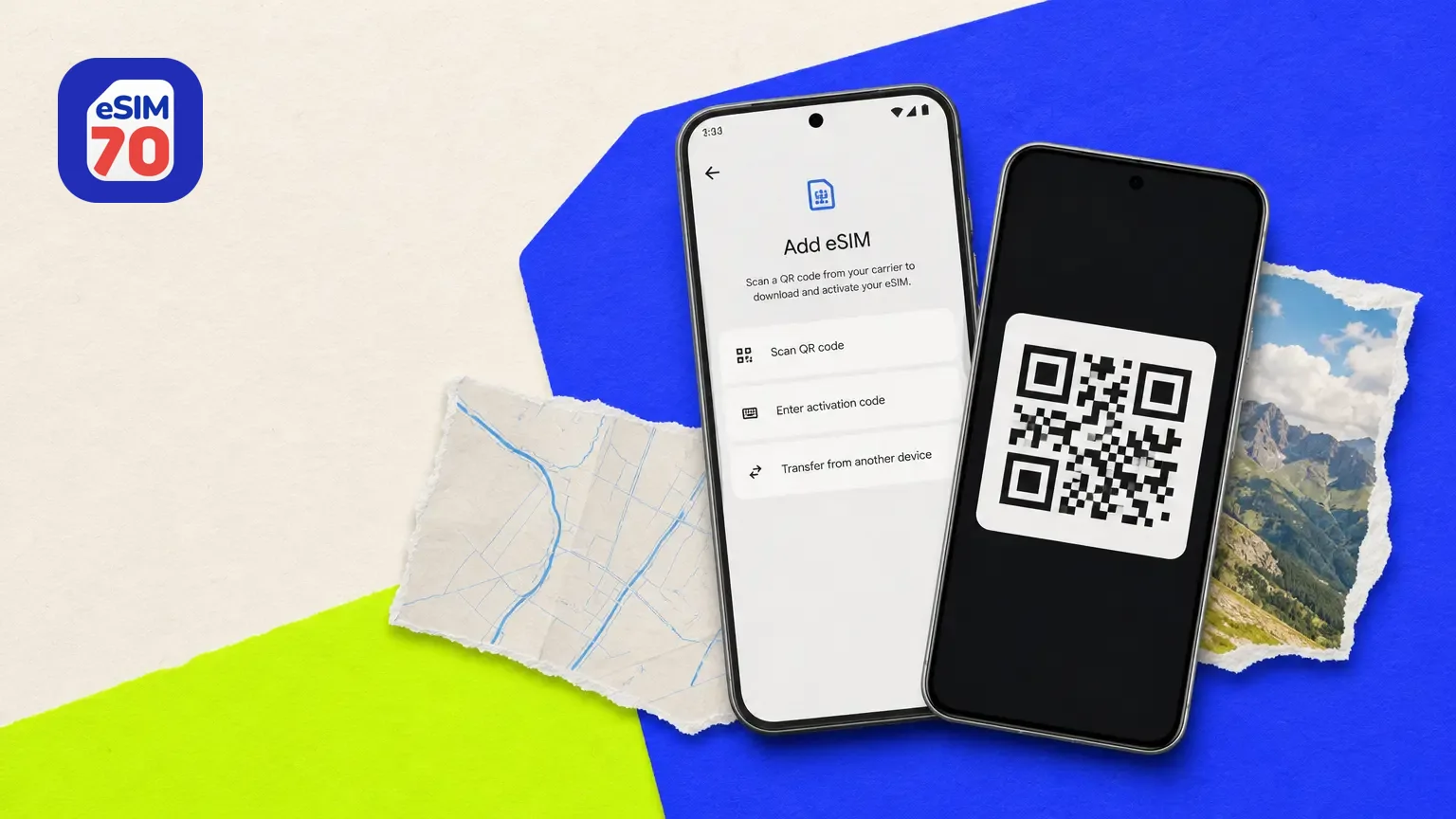
TL;DR: To install an eSIM on Android, connect to Wi-Fi and open your SIM settings. On a Samsung Galaxy, go to Settings → Connections → SIM manager → Add eSIM and scan your provider's QR code. On a Google Pixel, go to Settings → Network & internet → SIMs → Add SIM → Set up an eSIM and follow the prompts. Then set the eSIM as your mobile data SIM.
Using an iPhone instead? Follow our iPhone eSIM install guide.
Android phone makers name their menus differently, so this guide gives the exact steps for Samsung and Pixel, taken from Samsung's and Google's own support pages, plus what to look for on other brands. It also covers how to activate the eSIM for travel, where to find it later, and what to do if it won't install.
Does your Android phone support eSIM?
If you're not sure what an eSIM is, it's a SIM built into your phone that downloads your plan instead of using a card. Many recent Android phones support eSIM, but support depends on the model, the country it was sold in and sometimes the carrier.
Google Pixel: Google says every Pixel from the Pixel 4 onward works with eSIM. Older models are limited: the Pixel 3a doesn't support eSIM if bought with Verizon service or in Japan, and the original Pixel doesn't support it at all. In the US, the Pixel 10, 10 Pro and 10 Pro XL take eSIM only, with no physical SIM.
Samsung Galaxy: Samsung notes that eSIM depends on your carrier and that it may not be supported in every country. The quickest check is to open Settings → Connections → SIM manager and look for Add eSIM.
Other brands: Look in your SIM or mobile network settings for an option to add or download an eSIM.
On a Pixel you can also check for an eSIM chip: go to Settings → About phone → SIM status and look for an EID number. For more models, see our full list of eSIM-compatible phones.
Before you start
Your phone supports eSIM. See above.
Your phone is unlocked. A phone locked to one carrier won't accept another provider's eSIM. Samsung notes you may need the original carrier to unlock it.
You're connected to Wi-Fi. Samsung asks you to connect to Wi-Fi or mobile data first, because the eSIM downloads over the internet.
You have your eSIM details. That means the QR code, or the activation code, from your provider's email or app.
How to install an eSIM on Samsung Galaxy
Scan a QR code
Open Settings and tap Connections.
Tap SIM manager.
Tap Add eSIM.
Tap Scan QR code and scan the code from your provider.
Restart your phone to apply the eSIM, if prompted.
Enter an activation code (older Samsung menus)
On some Galaxy phones the menus use older names. Go to Settings → Connections → SIM card manager → Add mobile plan, then tap Add using QR code or Add using activation code and enter the details your provider gave you.
Samsung also supports a carrier push notification: if an eSIM-ready notification appears, tap it, then tap Add.
How to install an eSIM on Google Pixel
Open Settings and tap Network & internet.
Tap SIMs, then Add SIM.
Tap Set up an eSIM.
Follow the on-screen instructions to scan your provider's QR code or enter its details.
On some Android versions, the option appears as Download a SIM instead? after tapping Add next to Mobile network. If you're setting up a new Pixel, you can also tap Download SIM during setup.
How to install an eSIM on other Android phones
Brands such as Motorola, Xiaomi and OnePlus use their own menu names, but the steps follow the same pattern: open Settings, go to your SIM or Mobile network settings, look for an option such as Add eSIM or Download SIM, then scan the QR code or enter the activation code. Your phone's manual or the maker's support site will have the exact labels. Many providers also let you install the eSIM straight from their app.
How to activate an eSIM on Android
Installing the eSIM is half the job. These settings make sure it actually connects, especially if you're using it as a travel eSIM next to your home SIM.
Turn the eSIM on. On a Pixel, open Settings → Network & internet → Mobile network, tap the eSIM and make sure Use this SIM is on. On a Samsung, use the switch next to the eSIM in SIM manager.
Choose it for mobile data. On a Pixel, go to Settings → Network & internet → SIMs and, under Your primary SIMs, tap Mobile data and pick the eSIM. On a Samsung, go to SIM manager, tap Primary SIM and set the eSIM for data. Only one SIM can handle mobile data at a time.
Turn on roaming for the travel eSIM. Most travel eSIMs connect through partner networks abroad, so roaming needs to be on for that SIM. On a Samsung, go to Settings → Connections → Mobile networks and turn on Data roaming. On a Pixel, open Settings → Network & internet → SIMs, choose the eSIM and turn on Roaming. Check your provider's instructions to confirm.
Where to find eSIM on Android
Your eSIMs are listed in your phone's SIM settings, next to any physical SIM:
Samsung Galaxy: Settings → Connections → SIM manager (called SIM card manager on older phones).
Google Pixel: Settings → Network & internet → SIMs.
Other brands: usually under SIM or Mobile network in Settings.
When should you install a travel eSIM?
Install it before you leave, while you're on reliable Wi-Fi, so you're connected as soon as you land. You can leave the eSIM switched off until you arrive. Some plans start their validity when you install them and others when you first connect abroad, so check your plan's terms before installing very early.
eSIM not working on Android?
If the eSIM won't install or shows no signal, try these steps:
Check that you're on Wi-Fi and that the eSIM is switched on and set for mobile data.
Make sure roaming is on for the travel eSIM.
Restart your phone. Samsung asks you to restart after adding an eSIM so it can apply the profile.
Confirm your phone is unlocked and supports eSIM.
Contact your carrier or eSIM provider. Google advises contacting your carrier if problems continue.
Avoid deleting the eSIM to fix a problem unless your provider tells you to. Once it's removed, you may need a new eSIM from your provider to use that line again.
How to transfer an eSIM to a new Android phone
Moving to a new phone? You can often transfer your eSIM instead of getting a new one. The steps depend on your phone.
Transfer an eSIM on Google Pixel during setup
Keep your old phone switched on and nearby.
Start setting up your new Pixel.
When asked, choose the SIM you want to transfer.
Tap Transfer, then Activate.
Wait for activation and follow the on-screen instructions.
Transfer an eSIM on Google Pixel after setup
On the new Pixel, open Settings.
Tap Network & internet, then SIMs.
Tap Add SIM, then Transfer SIM from another device.
Follow the on-screen instructions on both phones.
Google lists three requirements for both phones: Android 12 or later, the current version of Google Play services, and a screen lock. Whether the transfer happens automatically depends on your carrier. If the transfer fails, your old phone's eSIM should keep working; try again, and contact your carrier if it still fails.
Transfer an eSIM on Samsung Galaxy
On the new Galaxy phone, open Settings and tap Connections.
Tap SIM manager.
Tap Add eSIM.
Tap Transfer SIM from another phone and follow the on-screen instructions.
Restart the phone if prompted.
If the transfer option isn't offered for your plan, or you're moving between different brands, contact your carrier or eSIM provider. They can usually issue a new eSIM for the new phone.
Unlike a physical SIM, an eSIM can't be moved to a new phone by hand. Our eSIM vs physical SIM comparison explains the difference.
How to delete an eSIM on Android
Only delete an eSIM if you no longer need it, for example after your trip has ended or once you've moved the plan to another phone. Once it's removed, you may need a new eSIM from your provider to use that line again.
Delete an eSIM on Samsung Galaxy
Open Settings and tap Connections.
Tap SIM manager (or SIM card manager on older phones).
Select the eSIM you want to delete.
Switch the eSIM off with its toggle.
Tap Remove and confirm.
To delete every eSIM on the phone at once, go to Settings → Connections → SIM manager and tap Remove all mobile plans.
Delete an eSIM on Google Pixel
Open Settings.
Tap Network & internet, then Mobile network.
Select the eSIM you want to delete.
Tap Erase eSIM and confirm.
Pixel also lets you ask for a password before any eSIM can be deleted: go to Settings → Security → Advanced and turn on Confirm SIM deletion.
Removing an eSIM from your phone doesn't cancel your plan or contract. Samsung notes you need to contact your carrier to end it.
Ready to travel?
When you're set, browse our travel eSIM plans for 150+ destinations.
Frequently asked questions
How do I get an eSIM for my Android phone?
Buy an eSIM plan from your carrier or an eSIM provider, then install it by scanning the QR code or entering the activation code in your SIM settings, or install it from the provider's app.
Why won't my eSIM work on my Samsung?
Check that the eSIM is switched on in SIM manager, set as the SIM for mobile data, and that data roaming is on if you're abroad. Restart the phone, and contact your provider if it still doesn't connect.
How do I add another eSIM to my phone?
Repeat the install steps: on Samsung, tap Add eSIM in SIM manager; on Pixel, tap Add SIM under Network & internet → SIMs. Then choose which SIM handles mobile data.
Which Pixel phones support eSIM?
Google says every Pixel from the Pixel 4 onward works with eSIM. In the US, the Pixel 10, 10 Pro and 10 Pro XL are eSIM-only.
Can I install an eSIM without Wi-Fi?
You need an internet connection, because the eSIM downloads over the internet. Samsung asks you to connect to Wi-Fi or mobile data before adding an eSIM.
Does removing an eSIM cancel my plan?
No. Removing it from your phone doesn't end your plan or contract. Contact your carrier or provider to cancel.
Contributors
Muhammed Ajmal is an SEO content strategist at Lascade, the app studio behind eSIM70. He writes guides that help travelers understand eSIMs, roaming and mobile data before they travel, turning research and statistics into practical steps.
Reviewed by

Jaseel S is the CEO and founder of Lascade. He leads a team of over 40 engineers, designers, and creatives dedicated to building consumer mobile applications that turn screen time into meaningful experiences.